Yes! Subscribers on both plans, Essentials and Plus, have access to our Notes & Highlights feature, which allows you to highlight any text and optionally attach a note to that highlight. Anything you save is stored in My Notebook, so you can revisit your saved notes and highlights later.
How to highlight text in a Guide
- Open any Study Guide.
- Select the text you want to save (click and drag on desktop, or press-and-drag on mobile).
- Choose the Highlight option in the selection toolbar (this saves the highlight).


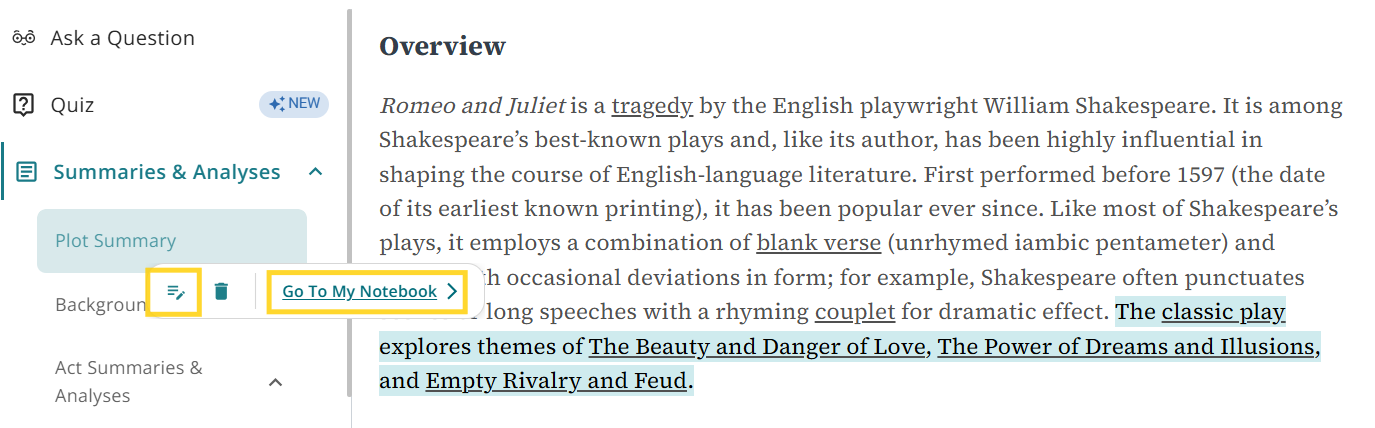
How to add a note (annotation) to a highlight
- Highlight a passage in the Guide (steps above) or click the highlight you've already made
- Choose the option to add a note.
- Type your annotation and save.
Your note will be tied to that specific highlighted passage and saved to your Notebook.
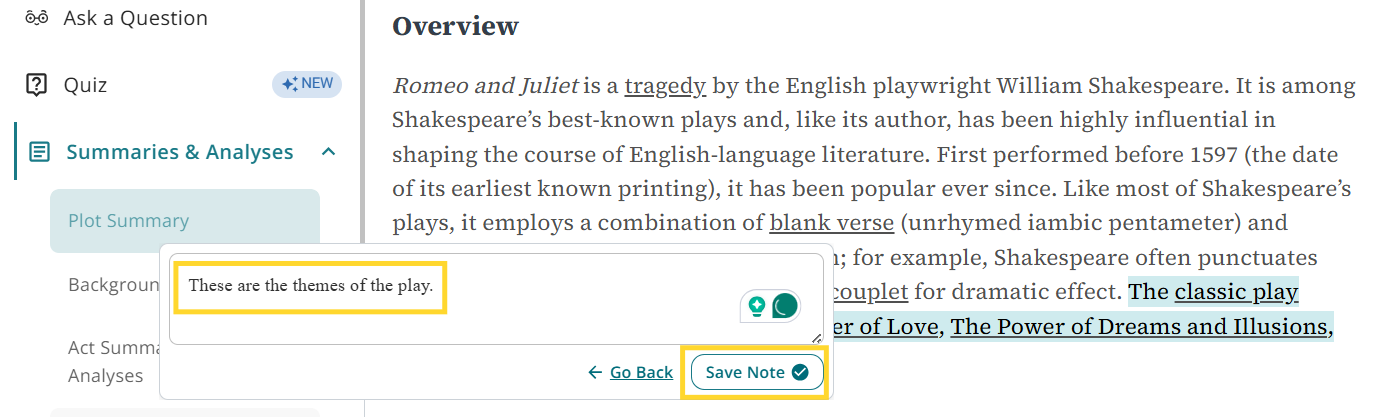
All saved highlights and notes are collected in My Notebook.
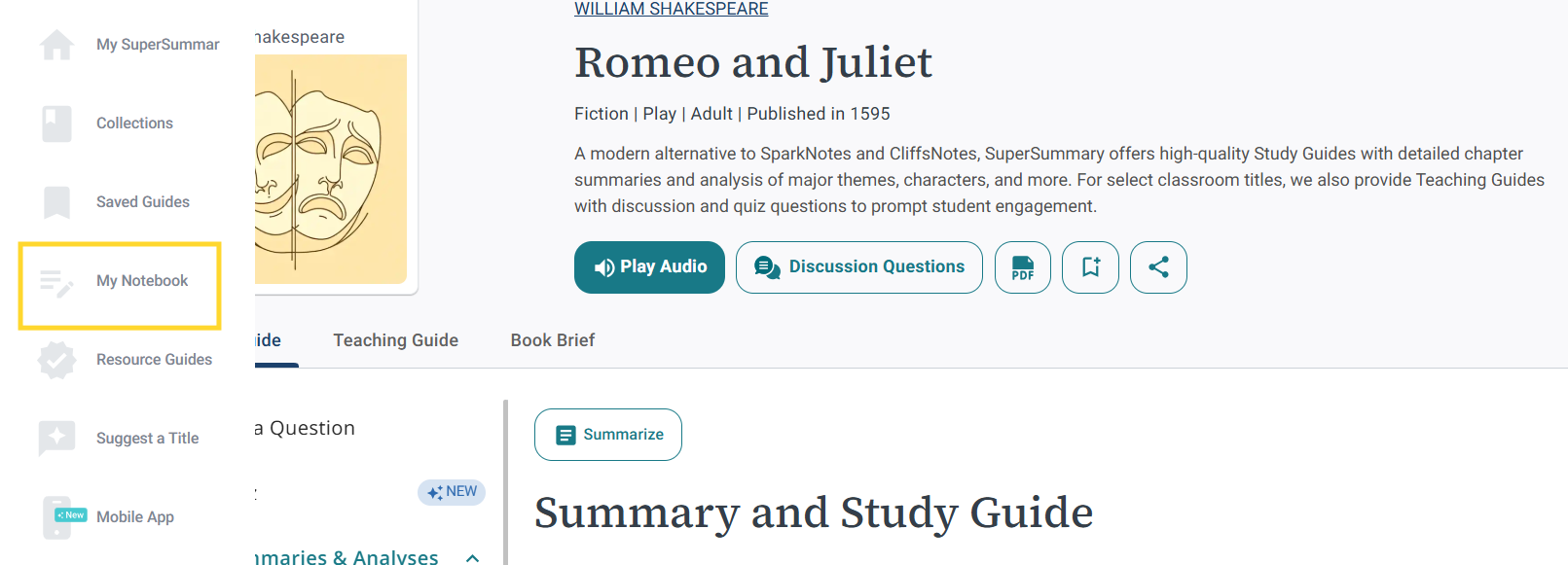
To access it:
- Desktop: Open the account/left-side menu and click My Notebook
- Mobile: Open the menu (hamburger menu) and tap My Notebook.
How to review all highlights for a specific Guide
- Go to My Notebook.
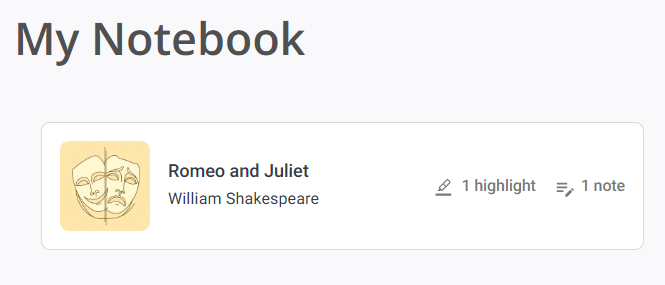
- Find the Study Guide you want. My Notebook groups your saved items by Study Guide, so everything from one Guide is in one place.
- Open it to review your saved notes and highlights.
Was this article helpful?
That’s Great!
Thank you for your feedback
Sorry! We couldn't be helpful
Thank you for your feedback
Feedback sent
We appreciate your effort and will try to fix the article